Plug-in integration overview
To run Active Guard plug-in on VMS client, the following implentation is required.
- Initialize plug-in module "ActiveGuard.OSS.dll"
- Create workspace
- Playback video
- Update and save configuration
"ActiveGuard.OSS.dll" provides requried API to get and set parameters.
Operating screen is shown by initializing plug-in module and creating workspace.
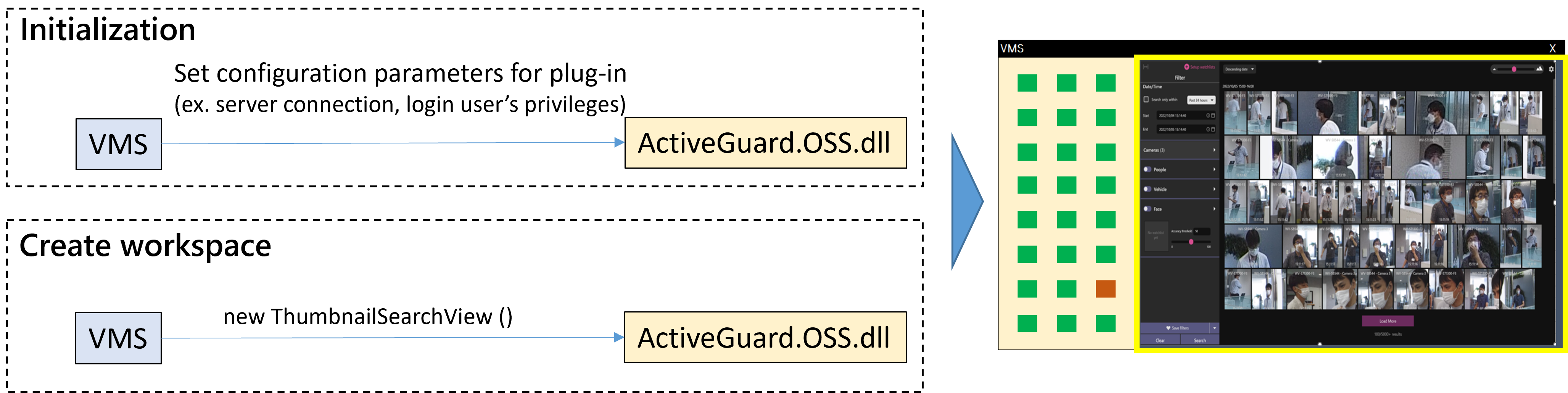
GUI and HTTP communication for object search between plugin and Active Guard server is implemented in "ActiveGuard.OSS.dll" and does not need to be implemented by the VMS.
The plugin has feature to playback video when user clicks on an image in search results.
Playback video area on plug-in screen should be implemented on VMS side.
(show video, video control buttons, timeline … depending on the VMS feature)
System diagram

Initialize plug-in module
1. Set configuration data
Sample is shown in "Src\ActiveGuard.Plugins.OSS.SampleApp\ViewModels\SampleAppViewModel.cs".
| method | description | requirement level |
|---|---|---|
| SetServerConnection(list<ServerConnection>) | List of network connection between plug-in and Active Guard server. | mandatory |
| SetCurrentUser(User) | Current user data like playback start time and saved filter. "preset.xml"(Saved filter)needs to be located in temporary folder in advance. |
mandatory |
| SetMaps(list<Map> | List of map data registered to VMS server. | optional |
| SetUserMngConfig(list<UserMng> | List of user privilege of watchlist access. This is only for configuration screen. |
optional |
2. Register callback for playback video
| method | description | requirement level |
|---|---|---|
| OpenPlaybackCB | *ActiveGuardFactory.OnHandleOpenRecordingEvent will be raised when user click image | mandatory |
3. Register callback for updating configuration
| method | description | requirement level |
|---|---|---|
| SaveServerConnectionsCB | Network connection setting. *ActiveGuardFactory.OnHandleSaveServerConnectionsEvent will be raised when updated |
mandatory |
| SaveCurrentUserCB | Current user configuration(ex.like playback starttime) *ActiveGuardFactory.OnHandleSaveCurrentUserEvent will be raised when updated |
mandatory |
| SaveUserMngConfigCB | User privilege of watchlist access for setup screen *ActiveGuardFactory.OnHandleSaveUserManagementEvent will be raised when updated | optional |
| SavePresetCB | Saved filter *ActiveGuardFactory.OnHandleSavePresetEvent will be raised when udpated |
mandatory |
Create workspace for plug-in
Sample is shown in "Src\ActiveGuard.Plugins.OSS.SampleApp\Views\SampleAppView.xaml".
1. Create workspace for operation
"ActiveGuard.OSS.dll" provides operation window for searching objects.

| class | requirement level |
|---|---|
| ThumbnailSearchView | mandatory |
2. Create workspace for configuration
"ActiveGuard.OSS.dll" provides configuration window for connection (between plug-in and i-PRO Active Guard server) and user privileges of watchlist access.

| class | requirement level |
|---|---|
| PluginSetupView | optional |
Note
VMS can also implement its own configuration screen instead of using this screen provided by plugin. It is necessary to set these configuration when initialization.
Playback video
The plugin has feature to playback video when user clicks on an image in search results.
Playback video area on plug-in screen should be implemented.
(show video, video control buttons, timeline … depending on the VMS feature)

1. Plugin notifies the callback when the user clicks on an image in the search results.

2. VMS gets the camera ID and time of the image to playback via API "GetMediaInfo".
3. VMS reads video data on recording server and sets an object via API "SetMediaElement".
Sample is shown in "Src\ActiveGuard.Plugins.OSS.SampleApp\ViewModels\SampleAppViewModel.cs".
public void SetMediaLayout()
{
    // 1. Get media info from OSSPlugin
    MediaInfo mediaInfo = ActiveGuardFactory.GetMediaInfo();

    // 2. Initialize PlaybackControl
    SamplePlaybackControl PlaybackControl = new SamplePlaybackControl(mediaInfo.CameraID, mediaInfo.PlayDate);

    // 3. Setting media element
    ActiveGuardFactory.SetMediaElement(PlaybackControl);
}
Note
Sample code does not include read video data and playback. This just shows still image.
4. Plugin shows the object and playback starts

Note
Video control button like pause, fast playback and more additional features like timeline or export button needs to be implemented by VMS.
Update configuration
Users can make the following settings related to plug-in functions from the plug-in screen.
- Network connection between i-PRO Active Guard server
- User privilege of face/people/vehicle watchlist access
- Saved filter
- Video playback start time
These configuration data need be stored and managed by VMS.
When the user change them on plug-in screen, plugin notifies callback.
VMS needs to read configuration information via API and update the data stored in VMS.

Note
Configuration data can be get and set via API, but only "preset.xml"(saved filter data) needs to be set using temporary folder defined in general configuration file.
General configuration file
Following statistics behavior can be configured in "ActiveGuardPluginSetting.xml".
<!-- Max of thumbnail filter result-->
<MaxSearhResult>5000</MaxSearhResult>
<!-- The directory of logs file-->
<LogFileDirectory>C:\Temp\Logs</LogFileDirectory>
<!-- The directory of preset filter file -->
<TemproraryFileDirectory>C:\Temp</TemproraryFileDirectory>
<!-- Log level ( 1:Debug , 2:Info , 3:Warning , 4:ErrorLog )-->
<LogTypeConfig>2</LogTypeConfig>
<!-- The Playback Display  ( 1:Popup , 2:Non-popup )-->
<PlaybackDisplay>2</PlaybackDisplay>
<!-- Use playback start time configuration ( True:Use(configuration icon appears on GUI) , False:Not use )-->
<UsePlaybacktimeConfig>True</UsePlaybacktimeConfig>
<!-- Up to 8 custom right click menu can be added-->
<RightClickCustomMenu1></RightClickCustomMenu1>
<RightClickCustomMenu2></RightClickCustomMenu2>
<RightClickCustomMenu3></RightClickCustomMenu3>
<RightClickCustomMenu4></RightClickCustomMenu4>
<RightClickCustomMenu5></RightClickCustomMenu5>
<RightClickCustomMenu6></RightClickCustomMenu6>
<RightClickCustomMenu7></RightClickCustomMenu7>
<RightClickCustomMenu8></RightClickCustomMenu8>