How do I reset a Controller in MonitorCast and what does this do?
- Video Insight VMS
- Installation/Configuration
The Controller can be reset through MonitorCast’s Hardware Config menu. This feature will temporarily reset a device, updating it to the most recent changes made to the functionality settings by MonitorCast.
1. Open MonitorCast Web App and log in using an Administrator account
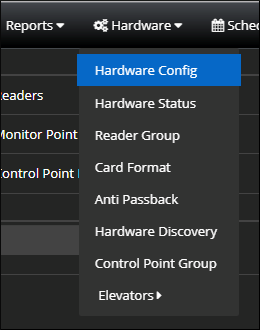
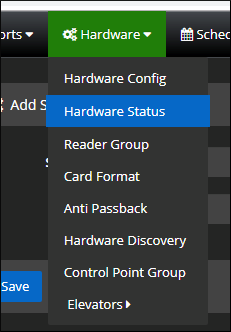
2. From the top menu, hover over Hardware and choose Hardware Config
3. In the left tree, expand the Site in which the Controller you are resetting is under
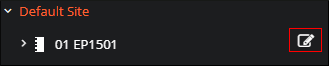
4. Hover over the name of the Controller and click the Edit button on the right
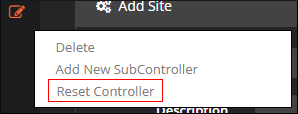
5. In the Context Menu, click on “Reset Controller”
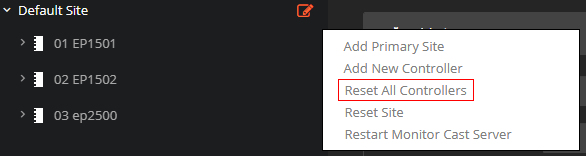
a. If you have Multiple Controllers that need to be reset, you can click the Edit button for the Site and select “Reset All Controllers”
If you want to monitor communication between MonitorCast and the Controller while you wait for it to reset, you can go to Hardware Status, [Hardware] → [Hardware Status]
Article number:en124331
Last updated:October 16, 2025
Was this article helpful?